
Google Scholar is not difficult to use, but it is easy to use badly. The usual mistake is to paste an entire research title into the search box, open the first few results, and assume the search is finished. A better search is deliberate: break the topic into concepts, try several small combinations, inspect each result, and follow the strongest papers in more than one direction.
This guide demonstrates that process using one worked example. The activities are grouped by purpose: preparing the search, building queries, controlling noisy results, judging papers, finding more literature, and organising what you keep. You do not have to use every Google Scholar feature or follow every section in one sitting.
The topic used throughout this guide:
The influence of exposure to social media misinformation on trust in electoral institutions among first-time voters in Ghana.
The result counts and citation counts in the screenshots will change over time. That is normal. Focus on the search decisions rather than trying to reproduce an exact number.
Prepare the topic for searching
A research title is written for a reader. A search query is written for a database. They are not the same thing.
For the worked topic, I would separate the important ideas like this:
| Concept | Main term | Useful alternatives |
|---|---|---|
| Phenomenon | misinformation | disinformation, fake news, false information |
| Channel | social media | WhatsApp, Facebook, digital media, online platforms |
| Outcome | political trust | institutional trust, electoral trust, voter confidence |
| Population | first-time voters | young voters, youth, Gen Z voters |
| Context | Ghana | West Africa, sub-Saharan Africa, African elections |
Do not force all five concepts into every search. Begin with two or three. Add or replace one term when the results are too broad, too narrow, or dominated by an irrelevant subject.
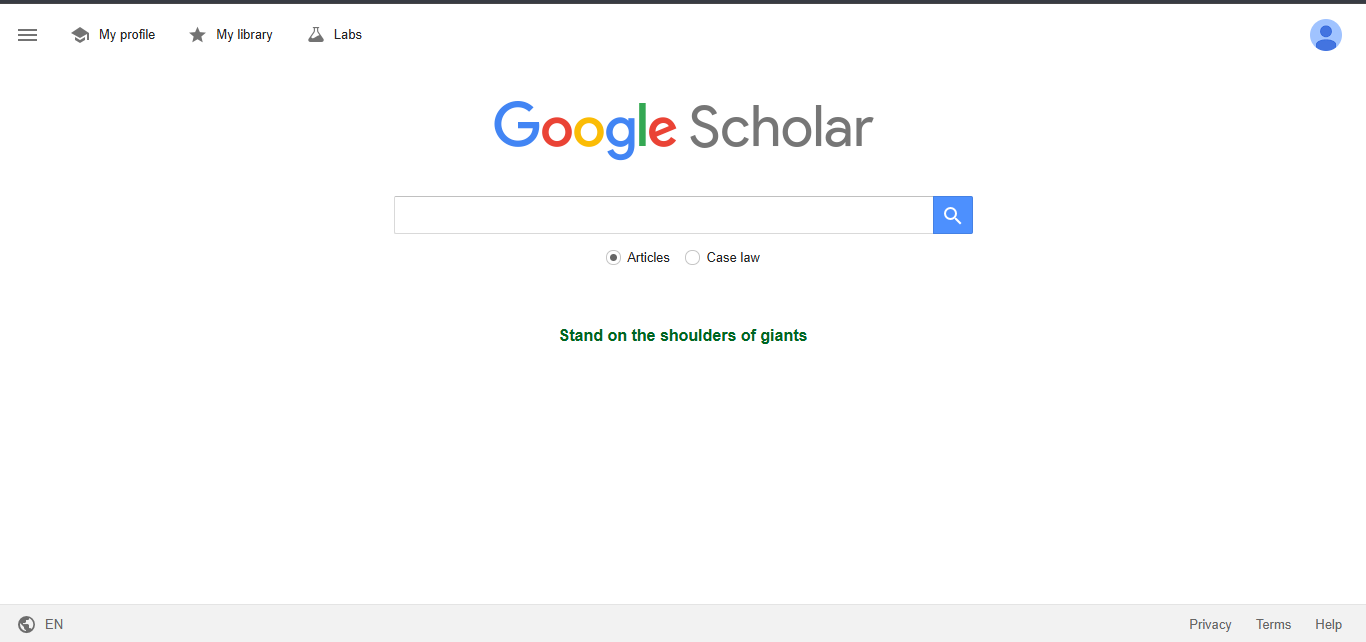
Begin from Google Scholar itself
Go directly to scholar.google.com. Google Scholar searches scholarly materials such as journal articles, conference papers, theses, books, preprints and institutional repository copies. It is different from an ordinary Google web search.
Build useful searches from the topic concepts
Searching is an exploratory activity, not a rigid sequence. A broad query helps you learn the language of the literature. A refined query helps you move closer to the relationship, population or context in your topic. You may move between the two several times.
Begin broad enough to learn the language
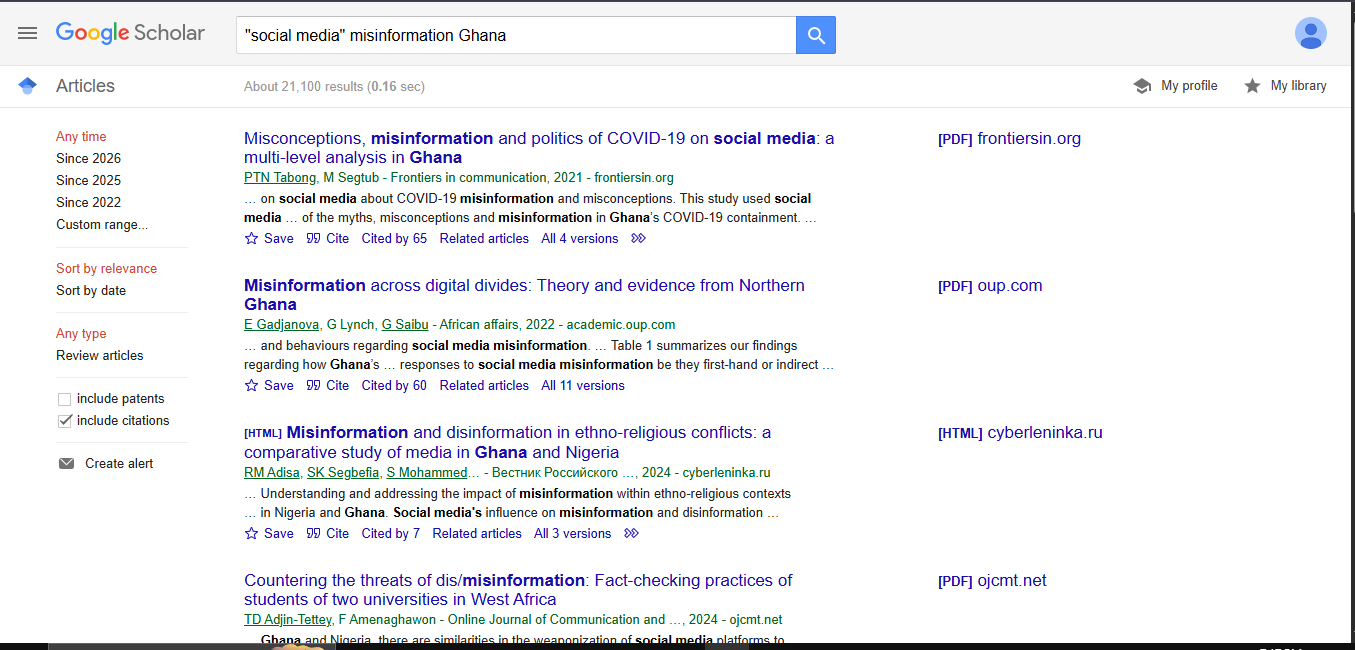
My first search would be:
"social media" misinformation GhanaThe quotation marks keep social media together as an exact phrase. Ghana anchors the search in the study context. The search is still broad enough to reveal the words researchers use and the types of Ghanaian studies that already exist.
Use the first page to decide what the next search needs
The first results page is feedback. Before opening several tabs, scan each result as a bundle of clues:
- Blue title: Does it address at least one important concept from your topic?
- Green line: Who wrote it, when was it published, and where did it appear?
- Snippet: Does it mention your population, country, outcome, theory or method?
- PDF or HTML link: Is a readable full-text copy available?
- Cited by: Can this paper lead you to newer work?
- Related articles: Can Scholar find papers with a similar intellectual profile?
- All versions: Is another lawful copy available elsewhere?
One visible result, Misinformation Across Digital Divides: Theory and Evidence from Northern Ghana, is clearly useful. It matches the phenomenon, channel and Ghanaian context. However, its title does not promise direct evidence about first-time voters or trust in electoral institutions. I would keep it as a candidate for the background, conceptual framing and Ghanaian evidence, but I would not pretend it covers the full relationship in the topic.
This distinction matters: a paper can be related without being a perfect match.
Refine one decision at a time
The first search was dominated by health and COVID-19 studies. Instead of adding ten words at once, replace or add one meaningful concept:
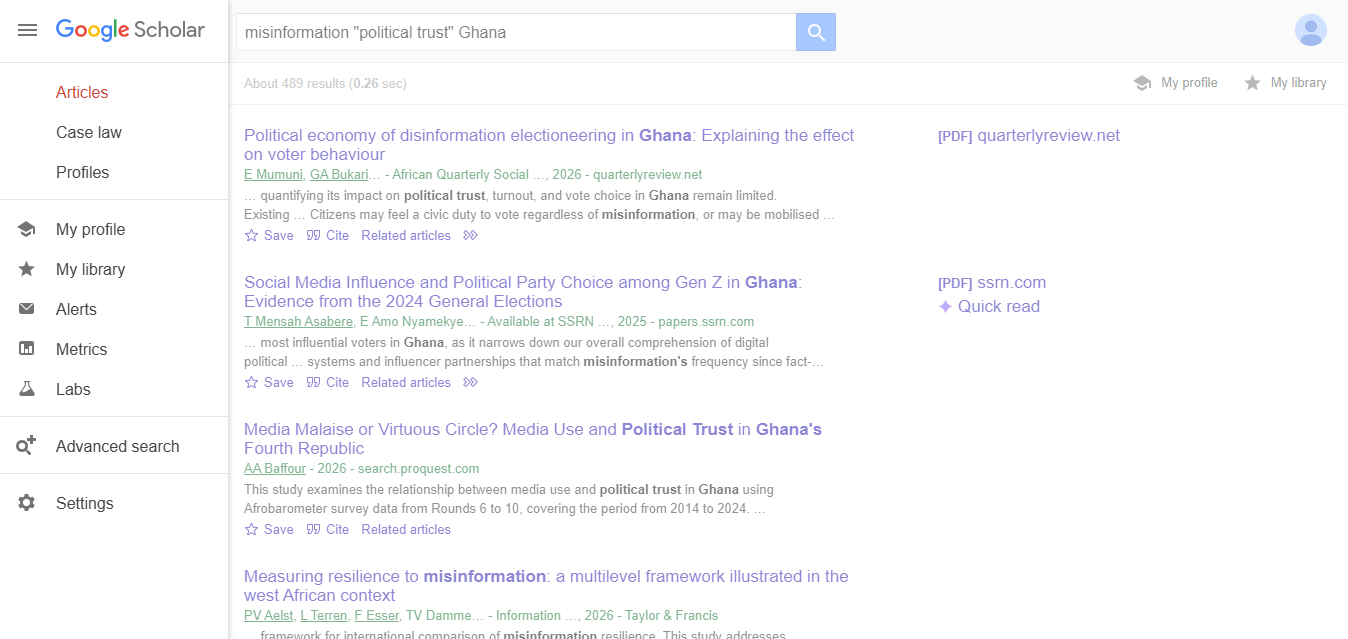
misinformation "political trust" Ghana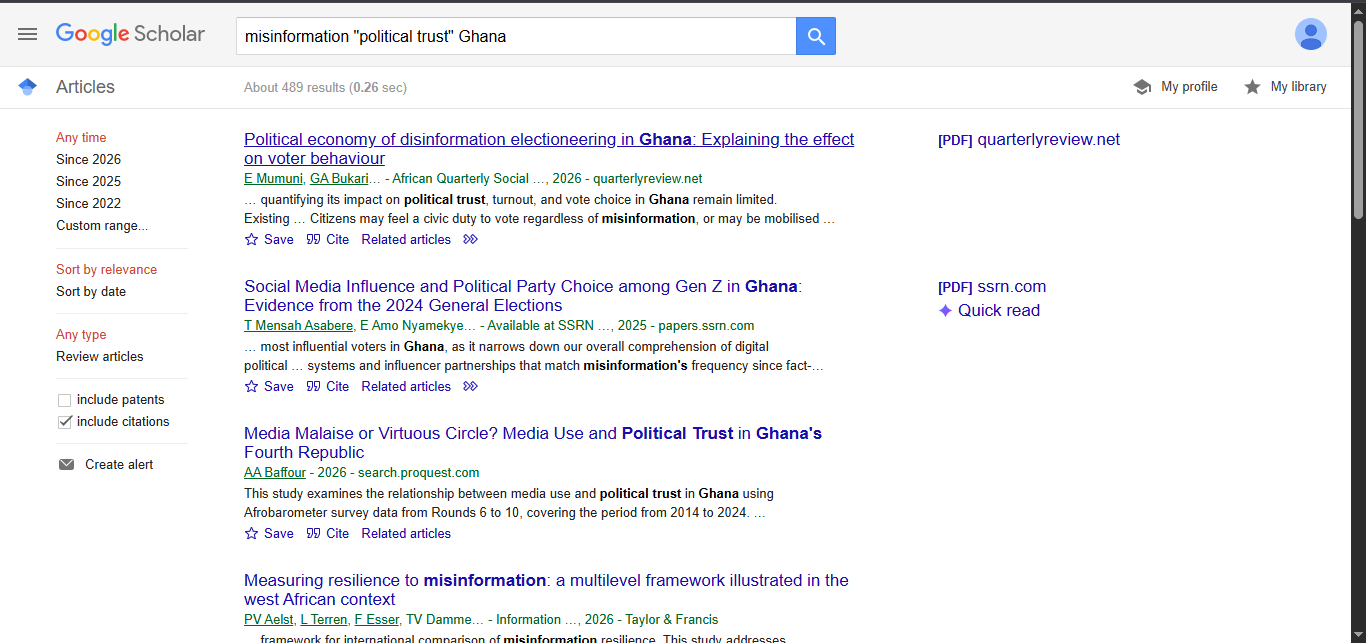
The result count becomes smaller, but the intellectual fit improves. That is the objective. Search quality is not measured by producing the largest number.
Use a search ladder
Run these as separate searches. Do not paste the entire list into one crowded query.
| Search | What it helps you find |
|---|---|
"social media" misinformation Ghana | Broad Ghanaian literature and common terminology |
misinformation "political trust" Ghana | Papers closer to the proposed outcome |
disinformation "institutional trust" Ghana | An alternative term for both the phenomenon and outcome |
"fake news" elections Ghana | Election-specific studies that use less formal terminology |
"social media" misinformation "young voters" | Population-focused work that may come from outside Ghana |
"first-time voters" trust elections Africa | A wider regional search when the exact Ghanaian combination is scarce |
If I were you, I would keep a search only when I can explain what changed. For example: “I replaced misinformation with disinformation because relevant authors used that term,” or “I widened Ghana to West Africa because the population-specific search produced too little evidence.”
Control the results when the list becomes noisy
Filters and Advanced Search are control tools. Use them when they solve a visible problem in the results. They are not boxes that every student must use.
Use the year and sorting filters with a reason
The left side of the desktop results page contains the year and sorting controls. Choose Since 2022 when you need recent developments, or open Custom range when your review has a justified period.
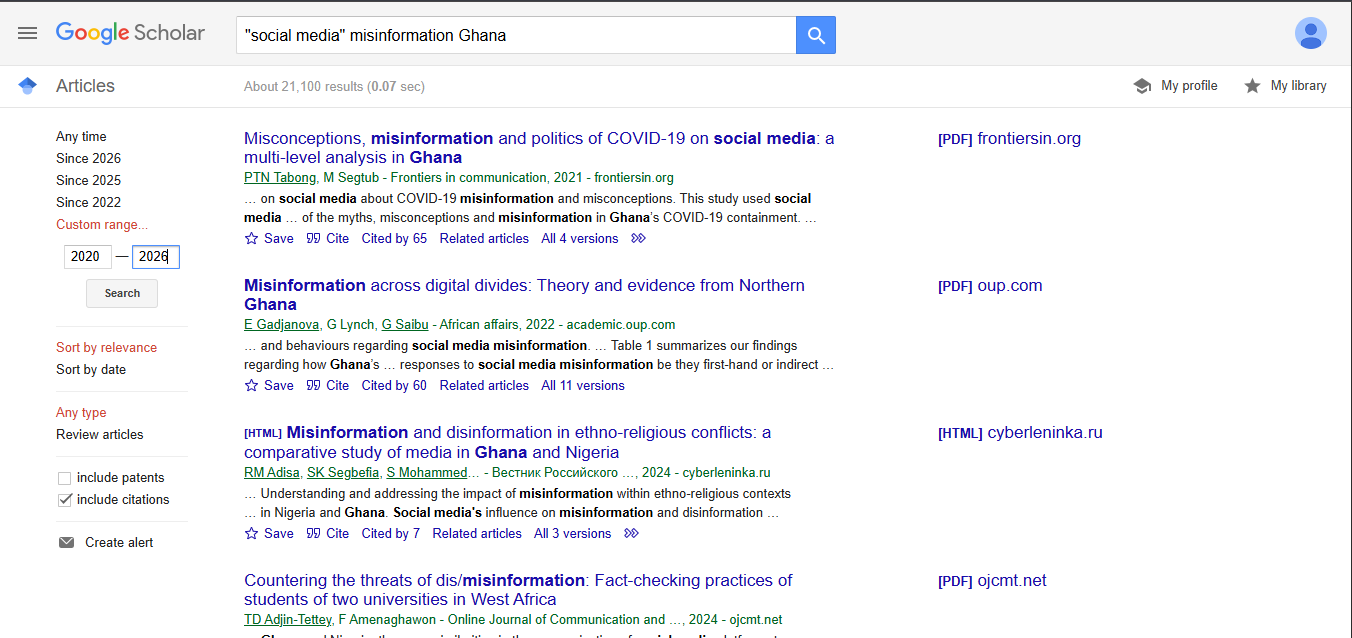
Sort by relevance is usually the better starting point because it keeps stronger conceptual matches near the top. Sort by date is useful when you specifically need the newest publications. Use both views when recency matters.
Do not automatically discard older papers. A recent empirical article may explain what is happening now, while an older paper may provide the theory or measurement scale that the newer studies still use.
Use Advanced Search when the search box becomes messy
On a desktop, click the three-line menu in the upper-left corner. The menu contains My profile, My library, Alerts, Metrics, Advanced search and Settings.
Advanced Search separates the decisions that become difficult to read in one long query.
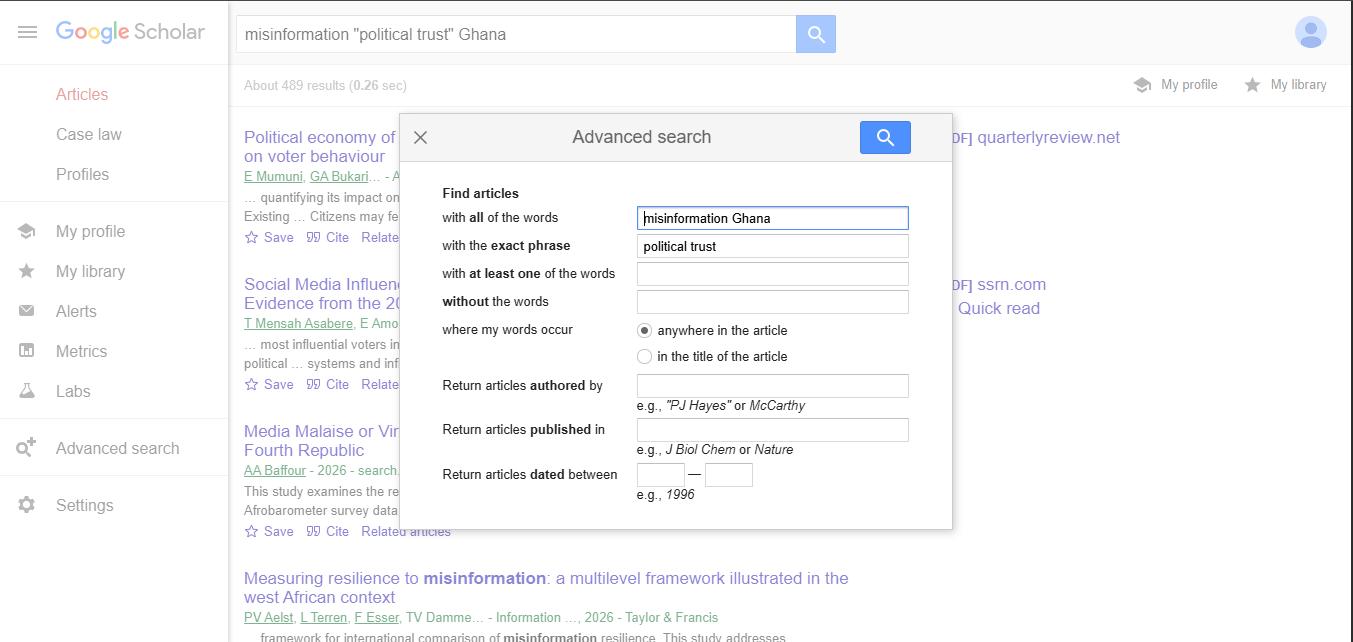
The fields mean:
- With all of the words: every word must appear somewhere in the result.
- With the exact phrase: the words must remain together in that order.
- With at least one of the words: useful for alternatives such as election, voting or voters.
- Without the words: removes a dominant but irrelevant theme, such as COVID or health in this example.
- Where my words occur: search anywhere or restrict them to the title.
- Authored by: useful when following a known scholar.
- Published in: useful for a known journal or source.
- Dated between: applies a specific publication period.
Be careful with in the title of the article. It is powerful but strict. Relevant ideas may appear in an abstract even when the author used a different title.
Decide whether a paper is genuinely useful
Opening a PDF is not the same as selecting a paper. Read the abstract and answer these questions:
- What exact problem does the study investigate?
- Where and when was the study conducted?
- Who or what supplied the data?
- Which theory, concepts or variables were used?
- Which method and analysis were used?
- What did the authors actually find?
- Which part of my work can this paper support?
For the Northern Ghana paper, the answer might be: strong contextual and conceptual fit, useful Ghanaian evidence, and a valuable explanation of direct and indirect exposure to misinformation. The limitation is that it does not directly test the full relationship in our proposed title. That is an honest and useful evaluation.
Four legitimate reasons to keep a paper
| Type of relevance | How the paper can help |
|---|---|
| Conceptual | Defines misinformation, political trust, voter confidence or another central idea |
| Contextual | Explains Ghanaian elections, media systems, digital access or youth participation |
| Theoretical | Provides a theory or model that can explain the expected relationship |
| Methodological | Shows how similar concepts were measured, sampled or analysed |
A good literature review normally needs all four types. It does not need every paper to match every word in the topic.
Move from a promising result to usable literature
Obtain the full text lawfully
Look first for a PDF or HTML link on the right of the result. If the publisher page is restricted, choose All versions. Scholar may show an author manuscript, university repository copy, publisher copy or another indexed version.
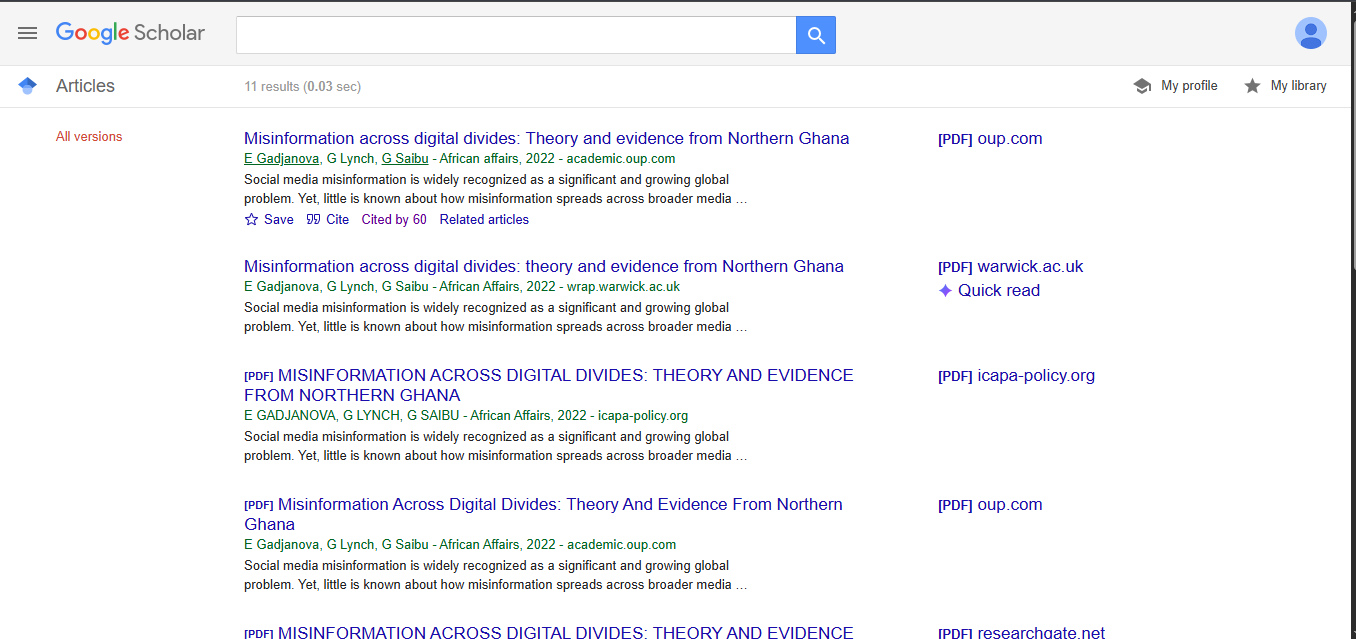
If no full text appears, try your institution's library, the author's university profile, an institutional repository, or a polite request to the author. Avoid suspicious download sites. Also confirm that the version you read corresponds to the work you cite.
Move backward, forward and sideways through the literature
Once you find one strong paper, stop treating it as a dead end.
- Backward: examine the paper's reference list to find the work it used.
- Forward: click Cited by to find later work that used or discussed it.
- Sideways: click Related articles to find papers Scholar considers similar.
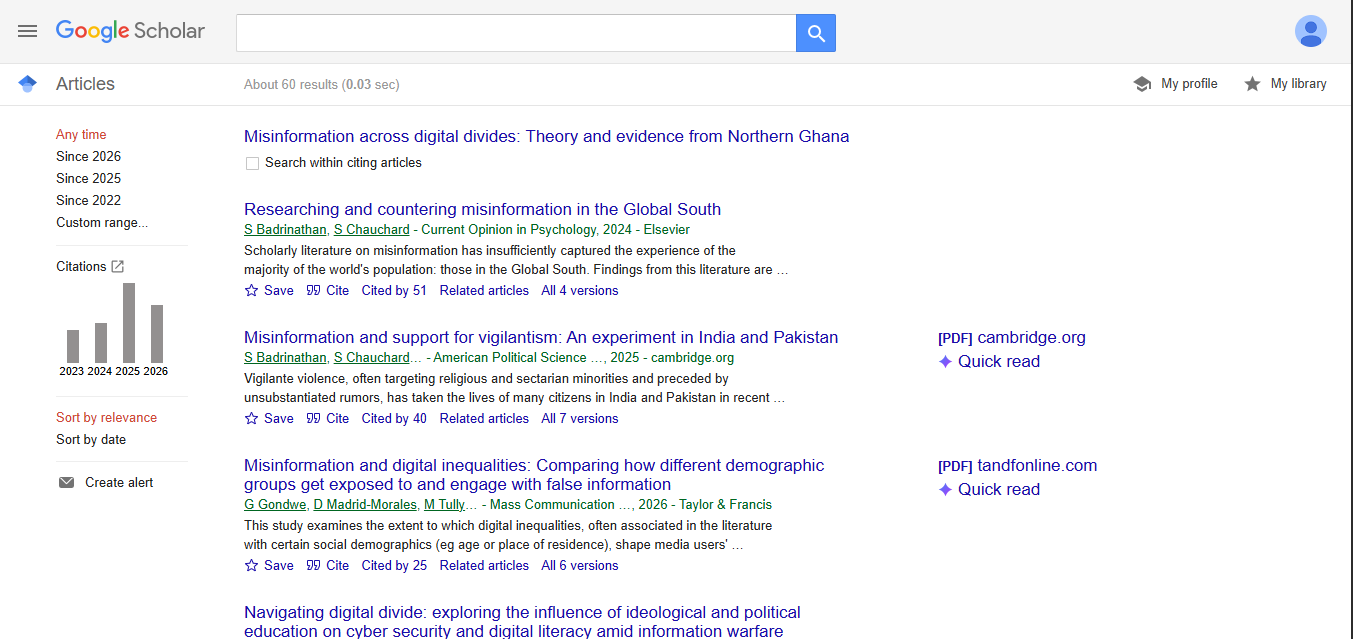
This citation-trail method is often better than repeatedly inventing new keywords. One highly relevant paper can lead to the authors, theories, measurements and later debates that shape the field.
Capture citation details, but verify them
Click Cite beneath a result to view several reference styles and export formats.
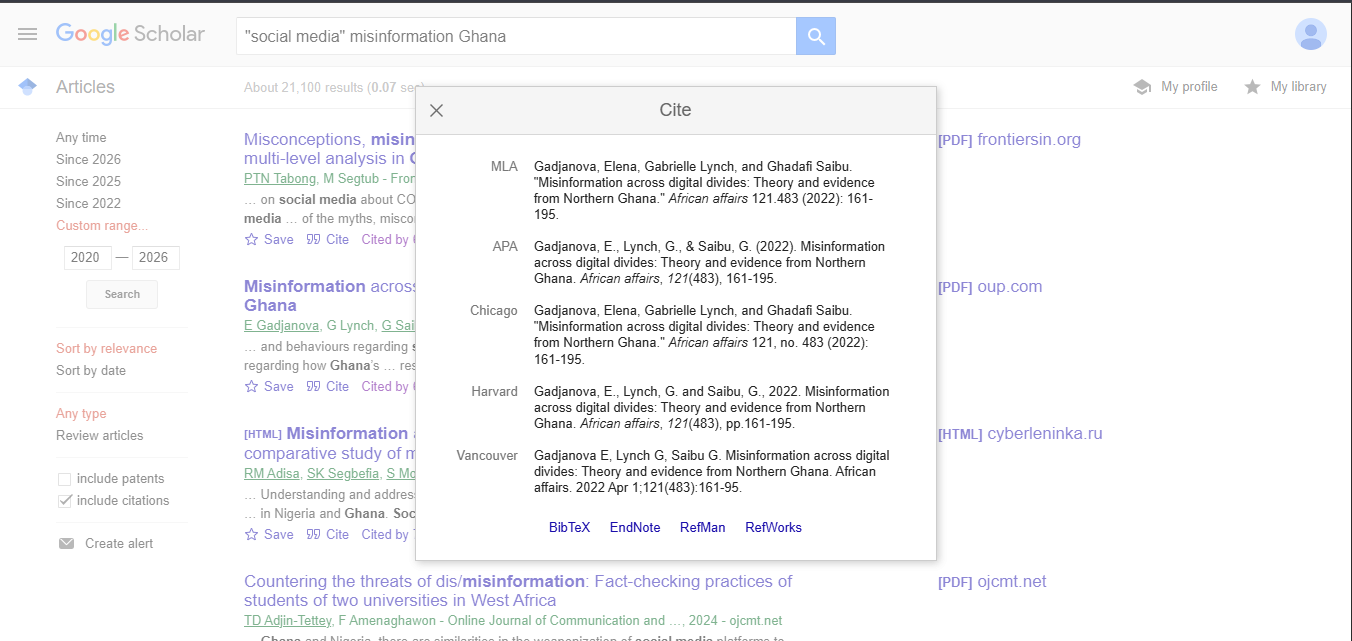
Do not copy the citation without checking it. Compare the authors, year, article title, journal title, volume, issue, pages and DOI with the publisher's page or the PDF. Capitalisation and missing publication details are common problems in automatically generated references.
On a phone: reveal Cite and All versions
On a narrow screen, Google Scholar may initially show only the star, Cited by, Related articles and a double-forward arrow. This does not mean Cite and All versions are unavailable.
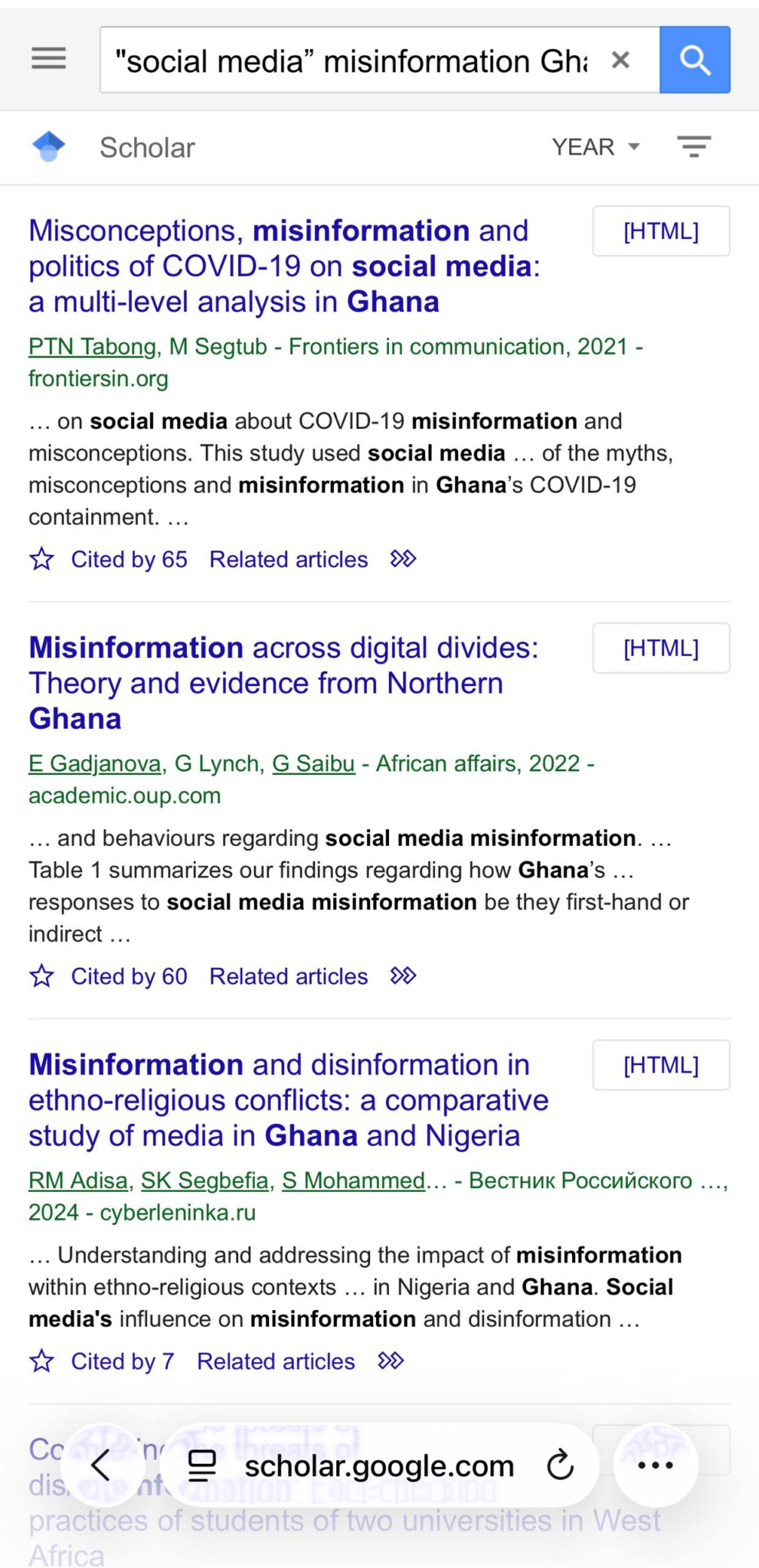
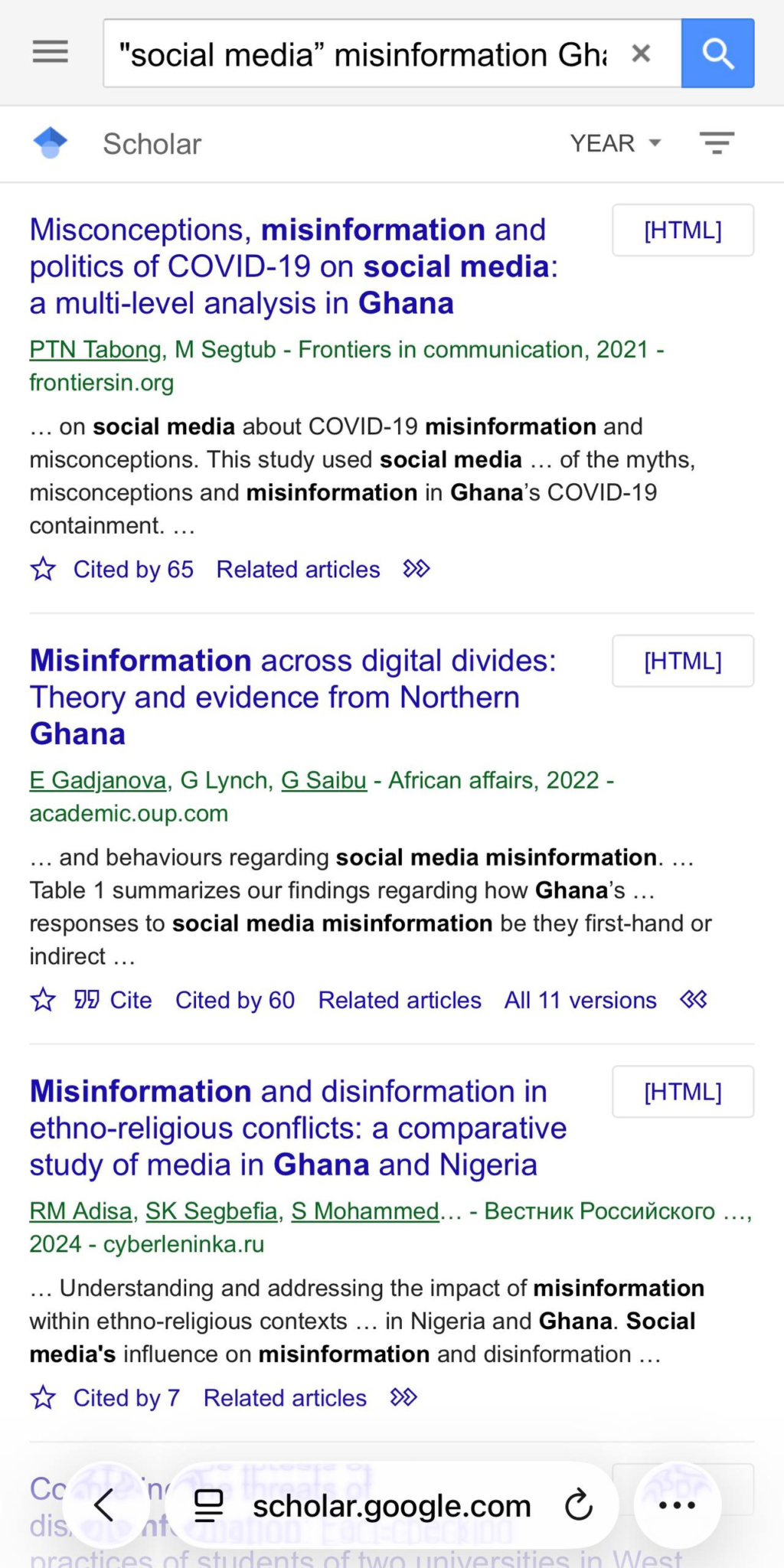
Choose an organisation method that fits your work
Google Scholar's My Library is optional. You may prefer Zotero, Mendeley, EndNote, a folder system, or a literature matrix. What matters is that you can find each paper again and remember why you kept it.
Using My Library and labels
The star beneath a result is the Save control. Click it to add the paper to your Google Scholar library. A filled star confirms that the result has been saved.
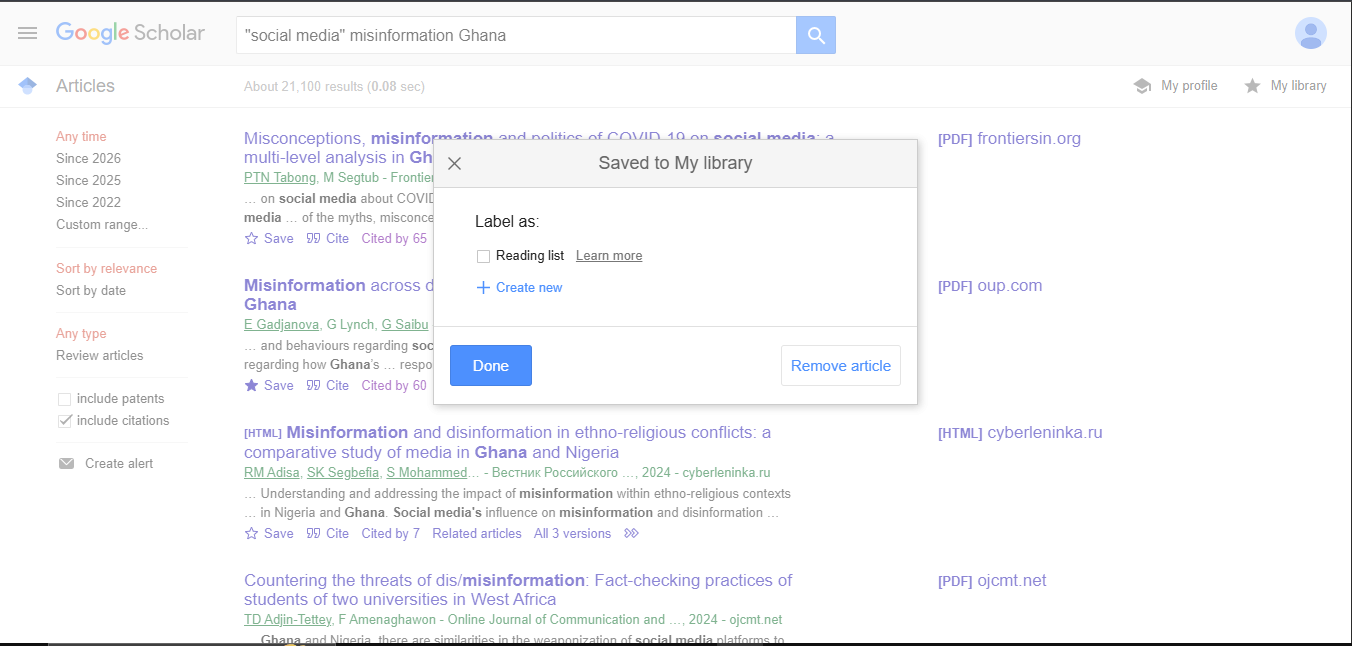
Labels prevent one project from becoming mixed with another. For this example, a label such as My Project Work 2026/2027 makes the purpose clear.
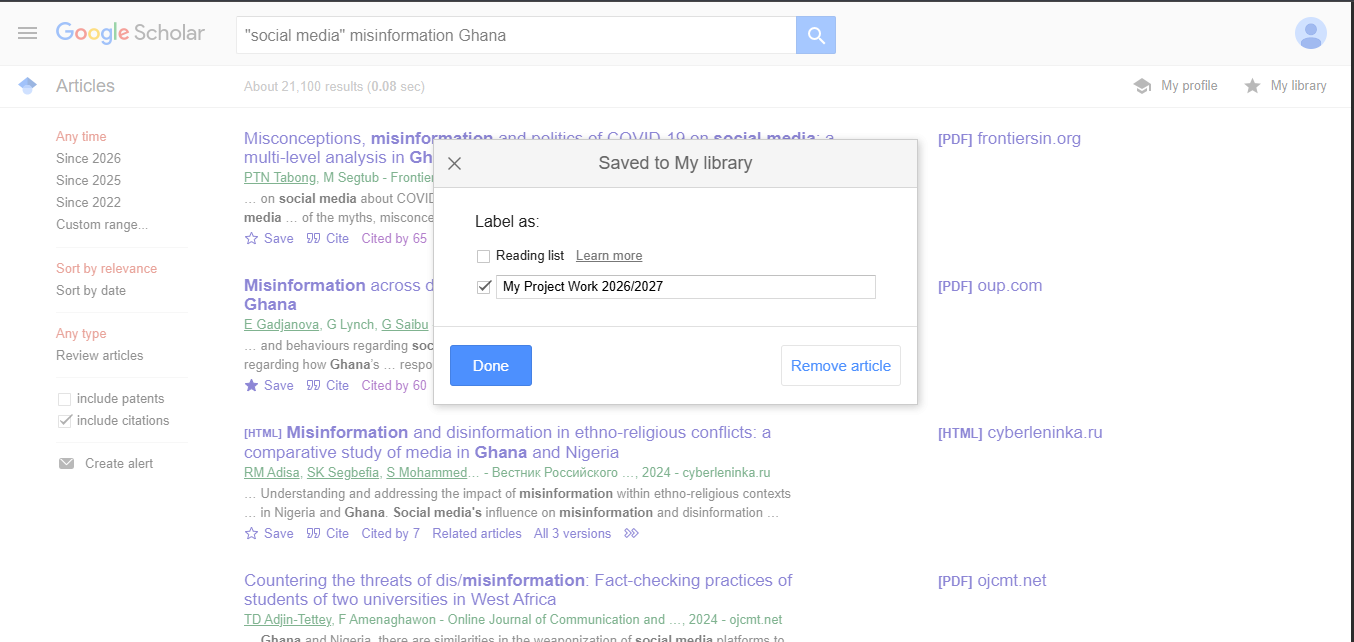
My Library is useful for discovery and temporary organisation. For serious writing, also record the paper in a reference manager or literature matrix so that your notes, methods and findings are not lost.
Create an alert when a search is worth monitoring
When a query is producing useful results, select Create alert. Confirm the query and email address. Google Scholar will then email you when it indexes new results that match the search.
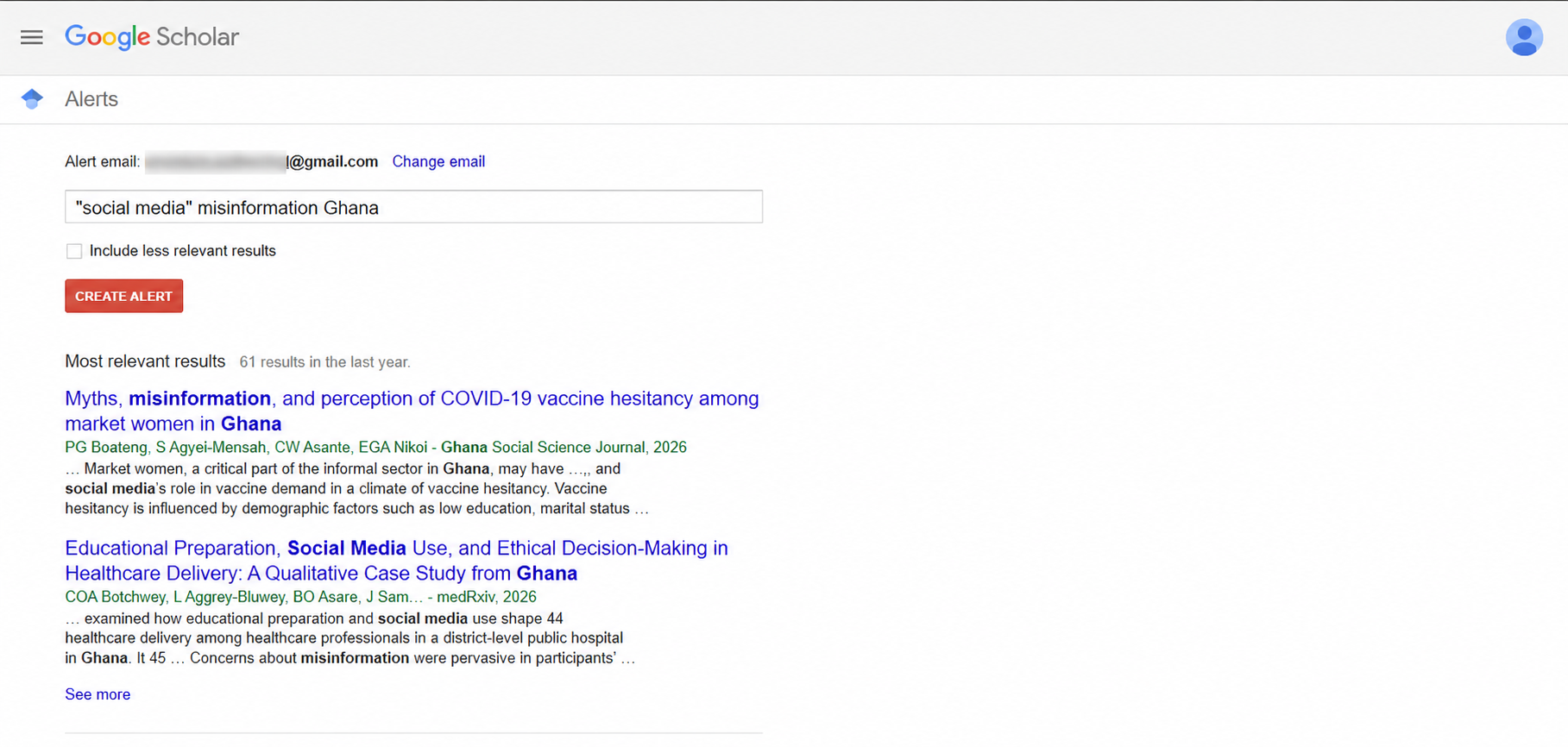
I would create two alerts rather than one crowded alert:
misinformation "political trust" Ghana"first-time voters" elections Ghana
Turn searching into evidence you can use
Keep a search log when the review needs an audit trail
A search log stops you from repeating the same searches and makes your method easier to explain. A simple table is enough:
| Date | Query | Filters | Results reviewed | Papers kept | Next decision |
|---|---|---|---|---|---|
| 15 Oct 2026 | "social media" misinformation Ghana | Relevance, any time | First 20 | 4 | Add political trust because health studies dominate |
| 15 Oct 2026 | misinformation "political trust" Ghana | 2020-2026 | First 20 | 7 | Try disinformation and institutional trust |
For every paper you keep, record at least the full citation, research purpose, context, sample, method, theory, principal findings, limitation and the section of your work it may support. The next step is to move those details into a literature matrix.
An optional 30-minute search routine
This is a suggested rhythm for a focused session, not a rule. Adapt it to the stage of your project and the number of databases you are searching.
- Minutes 1-5: separate the topic into concepts and alternatives.
- Minutes 6-12: run two broad searches and note the language used in promising results.
- Minutes 13-20: refine the outcome, population or context and inspect the first 10 to 20 results.
- Minutes 21-25: follow Cited by, Related articles and the references of one strong paper.
- Minutes 26-30: save the best papers, update the search log and write why each paper was kept.
If I were doing this search, I would not spend the whole session downloading files. I would make selection decisions while the reason for each search is still fresh.
Common mistakes that weaken a Google Scholar search
- Searching the full research title as one sentence
- Trying only one query
- Using quotation marks around too many words
- Assuming a large result count means a good search
- Selecting papers only because they have many citations
- Ignoring newer papers because they have not accumulated citations yet
- Reading only the result snippet instead of the abstract and paper
- Downloading papers without recording why they are relevant
- Using a generated citation without checking it
- Expecting one paper to match the phenomenon, outcome, population and context perfectly
How do you know when to stop searching?
There is no universal number of papers. Stop the initial search when new queries mostly return authors, concepts and studies you have already seen, and when you have credible material for the major concepts, theory, context and method. Then check your university's requirements and discuss the coverage with your supervisor.
You may still return to Scholar while writing. Literature searching is usually iterative: reading changes the search, and the improved search changes the review.
Final checklist
- I separated my topic into concepts and synonyms.
- I tried several short query combinations.
- I used exact phrases only where necessary.
- I checked relevance and date sorting.
- I inspected abstracts instead of relying on snippets.
- I followed references, Cited by and Related articles.
- I checked PDF, HTML and All versions for lawful full text.
- I stored useful papers in an organisation system that works for me.
- I verified every generated citation.
- I recorded searches and papers in a search log or literature matrix.
Continue with the method that matches your study
- Finding qualitative research on Google Scholar
- Finding quantitative research on Google Scholar
- Finding mixed-methods research on Google Scholar
- Building a literature matrix from the papers you find
Sources used for this demonstration
- Google Scholar Search Help
- Gadjanova, Lynch and Saibu: Misinformation Across Digital Divides
- UniMAC repository example on election-related misinformation in Ghana
- Heliyon study on online campaign-message searches and voting behaviour in Ghana
The Google Scholar screenshots in this guide were captured from the live desktop and mobile interfaces on 15 October 2026. Google may move controls or change result counts over time.